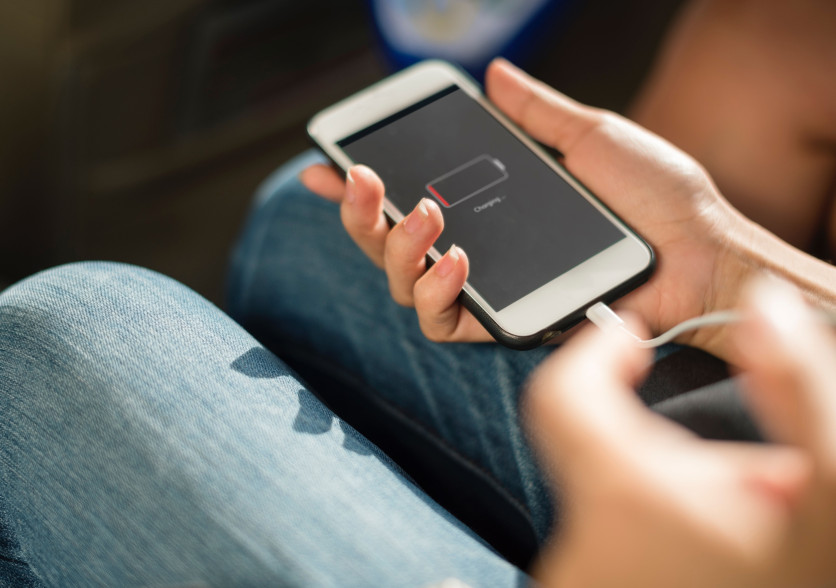
Watching your iPhone battery drop to zero long before the day is over is a frustration shared by countless users. Rapid battery drain remains one of the biggest complaints among iPhone owners, whether they've just unboxed a new handset or have been using the same device for years.
The good news is that fast battery drain is usually caused by phone settings, background activity or everyday habits rather than a hardware fault.
In most cases, you can restore a significant amount of battery life with just a few simple tweaks, potentially saving yourself the cost of an unnecessary replacement. Here's a closer look at what drains your battery so quickly and the straightforward steps you can take to fix it.
Start by Reviewing Battery Health
Before changing every setting on your phone, check whether the battery itself has simply degraded over time.
Lithium-ion batteries naturally lose capacity as they age. As Apple explains, every rechargeable battery has a limited lifespan, meaning older batteries cannot hold as much charge as they once could.
Models up to the iPhone 14 are designed to retain around 80 per cent of their original capacity after roughly 500 complete charge cycles under normal conditions. Devices from the iPhone 15 onwards double that target to around 1,000 full charge cycles.
How to Check Battery Health
- Go to Settings
- Choose Battery
- Select Battery Health (or Battery Health & Charging on earlier iOS versions)
- Review the Maximum Capacity figure
If the reading falls below 80 per cent and you're experiencing poor battery life, Apple recommends replacing the battery.
Identify Which Apps Use the Most Power
Many people assume their battery is failing when, in reality, one or two power-hungry apps are responsible for the rapid drain. Apple includes a detailed battery usage report that identifies exactly which apps are consuming the most power.
To review your battery usage:
- Open Settings
- Tap Battery
- Scroll to Battery Usage
- Review the apps using the highest percentage of battery
Streaming services, navigation apps, social media platforms, video editing software and mobile games all place heavy demands on your battery because they use the display, processor, internet connection and GPS simultaneously.
If a particular app is consuming an unusually high amount of power despite limited use, updating or reinstalling it often resolves the issue.
Background App Refresh Could Be Draining Power
Many apps continue updating even when you're not actively using them. This feature, known as Background App Refresh, allows applications to fetch new content, check for updates and refresh data while running in the background.
While convenient, it can noticeably reduce battery life.
To limit background activity:
- Open Settings
- Go to General
- Select Background App Refresh
- Turn it off completely or disable it for apps that don't require constant updates
Messaging and email apps often benefit from Background App Refresh, but games and shopping apps rarely need to update continuously.
Location Services Are Another Major Culprit
GPS is one of the most power-intensive features on any smartphone. Many apps request continuous access to your location, even when they're not in use.
To manage location permissions:
- Open Settings
- Tap Privacy & Security
- Select Location Services
- Review each app individually
For most apps, changing the permission from 'Always' to 'While Using the App' can significantly reduce unnecessary battery drain. Continuous location access is generally only needed for navigation, emergency or trusted safety apps.
High Screen Brightness Uses More Battery Than You Think
Your display is almost always the biggest drain on your battery. Keeping the screen at maximum brightness throughout the day forces it to consume considerably more power.
To improve battery life:
- Lower the brightness manually via Control Centre
- Turn on Auto-Brightness
- Switch to Dark Mode if your iPhone has an OLED display
Apple also recommends enabling Auto-Lock so the display switches off automatically when the phone isn't being used.
Poor Mobile Signal Drains Your Battery Faster
Fast battery drain isn't always caused by your apps. If you're in an area with poor mobile reception, your iPhone increases its transmitter power as it constantly searches for nearby mobile towers.
That continuous search places a significant strain on the battery.
Apple recommends:
- Connecting to Wi-Fi whenever possible
- Moving to areas with stronger reception where practical
- Turning on Airplane Mode when travelling through areas with no signal for extended periods
These steps prevent your phone from repeatedly searching for a network.
Software Updates Can Temporarily Increase Battery Usage
Many users notice increased battery drain immediately after installing a new version of iOS.
In most cases, this is entirely normal. Following an update, your iPhone performs several background tasks, including indexing files, processing photos and rebuilding system search indexes. These temporary processes increase processor activity and consume more battery than usual.
Apple says battery performance typically returns to normal once these background tasks have finished, which may take anywhere from a few hours to a couple of days depending on your device. If rapid battery drain continues well beyond that period, check whether a follow-up iOS update containing bug fixes is available.
How to Maximise Your iPhone Battery
Turn on Low Power Mode
Enabling Low Power Mode is one of the quickest ways to extend battery life. It reduces power consumption by limiting:
- Background App Refresh
- Mail retrieval
- Certain visual effects
- Automatic downloads
Some background system processes
To enable it:
- Open Settings
- Tap Battery
- Turn on Low Power Mode
You can also add Low Power Mode to Control Centre for quicker access. Apple notes that the feature automatically switches off once the battery charges above 80 per cent.
Review Your Charging Habits
Although charging habits rarely cause immediate battery drain, they play an important role in preserving long-term battery health.
Experts generally recommend:
- Avoiding prolonged exposure to extreme heat
- Using certified chargers and charging cables
- Turning on Optimised Battery Charging
- Avoiding leaving your iPhone plugged in at 100 per cent for extended periods
Excessive heat remains one of the leading causes of lithium-ion battery degradation. Charging in direct sunlight or leaving your phone inside a hot car can permanently reduce its maximum battery capacity.
Notifications Also Consume Power
Every notification wakes the display, triggers background activity and often activates the vibration motor. If dozens of apps constantly send alerts throughout the day, the cumulative impact can noticeably reduce battery life.
To reduce unnecessary notifications:
- Open Settings
- Tap Notifications
- Turn off alerts for non-essential apps
Reducing notifications not only improves battery life but also helps minimise distractions.
Restart Your iPhone Occasionally
Although many people rarely restart their phones, a simple reboot can often resolve temporary software issues that affect battery performance.
Restarting clears temporary system processes, frees up memory and stops rogue apps from continuing to run in the background. If your battery suddenly starts draining much faster than usual, restarting your iPhone is often the quickest and simplest troubleshooting step.
When Should You Replace the Battery?
If you've adjusted your settings, updated iOS and reviewed battery usage but your phone still struggles to last through the day, the battery may simply have reached the end of its useful life.
Apple recommends replacing the battery if the Battery Health screen indicates service is required, or if the maximum capacity has fallen below 80 per cent and is noticeably affecting day-to-day use.
Replacing the battery is considerably cheaper than buying a new iPhone and can often restore much of the battery performance the device delivered when it was new.
Better Battery Life Starts With Better Habits
Rapid battery drain doesn't necessarily mean your iPhone is nearing the end of its life. More often than not, the biggest causes are high screen brightness, constant background activity, continuous GPS tracking, weak mobile reception or power-hungry apps.
Checking Battery Health, reviewing Battery Usage, limiting Background App Refresh, adjusting Location Services and enabling Low Power Mode are among the most effective ways to improve battery life. If those changes don't solve the problem and your battery capacity has declined significantly, replacing the battery is usually the most practical long-term solution.
Frequently Asked Questions
- What causes rapid battery drain on an iPhone?High screen brightness, background activity, continuous GPS tracking, weak mobile reception, and power-hungry apps are common causes.
- How can I check my iPhone's battery health?Go to Settings> Battery > Battery Health to review the Maximum Capacity.
- When should I replace my iPhone battery?Replace the battery if the Battery Health screen indicates service is required or if the maximum capacity falls below 80%.


