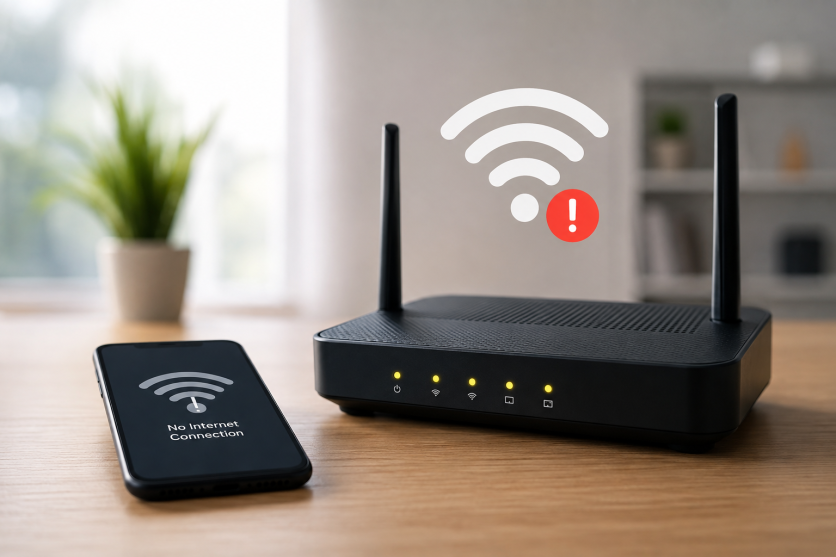
Sluggish Wi-Fi transforms basic internet tasks into a real headache. Interruptions to your day happen fast, whether you are logging into a video call, watching a favourite series, searching the web, or gaming online.
The good news is that a sluggish Wi-Fi signal does not automatically point to a fault with your broadband provider. In many cases, the trouble comes from inside your own home, such as a poorly placed router, heavy network traffic, or outdated gear.
Leading network brands NETGEAR and TP-Link note that signal blockage, crowded channels, old hardware or software, and an overload of connected gadgets are the top reasons speeds drop. Since you can handle many of these issues yourself, it pays to try a few quick fixes before getting in touch with your internet service provider (ISP).
What Causes Slow Wi-Fi?
The speed you actually get relies on far more than the broadband package you buy. Your ISP sets the top limit coming into the building, but indoor factors—like router location, connected devices, thick walls, neighbouring networks, and old gear—dictate your actual Wi-Fi performance.
In fact, most wireless issues stem from inside the house rather than the supply line itself. Before assuming your ISP is at fault, network brands like NETGEAR and TP-Link suggest running through basic checks first: repositioning the router, updating its software, and clearing signal friction.
A few small tweaks like these often bring back your speeds without the need for new kit or an engineer visit.
1. Reboot Your Router and Modem
It sounds simple, but restarting your network gear is still one of the best ways to fix connection issues.
Routers and modems usually run non-stop for weeks or months on end. Over time, minor system glitches and clogged memory can drag down your speeds. Giving both units a quick power reset clears out temporary errors and lets them build a fresh connection with your ISP.
- Turn off both boxes and pull the power cables out for about 30 seconds.
- Plug the modem back in first, followed by the router.
- Give them a few minutes to boot up and reconnect before running another speed test.
2. Find a Better Spot for Your Router
Where you place your router plays a massive role in your Wi-Fi performance.
Tucking the device inside a cupboard, hiding it behind furniture, or leaving it stuck in a far corner of the house makes it much harder for the signal to reach every room.
To get the strongest coverage across your home:
- Central placement: Position the router near the middle of the house.
- Elevate the device: Keep it raised off the floor on a table or shelf.
- Clear physical barriers: Stay clear of solid walls, heavy metal objects, and enclosed units.
- Avoid electronics: Steer clear of microwaves, cordless handsets, and electronic gear that disrupt signals.
Both NETGEAR and TP-Link suggest keeping routers out in the open and off the ground, as physical barriers and electrical noise quickly drain signal strength and drag down speeds.
3. Switch Between 2.4GHz and 5GHz Bands
Most modern routers send out signals on two Wi-Fi frequencies.
While the 2.4GHz band reaches further across your home, it delivers lower speeds and easily picks up interference since many domestic gadgets share the same wavelength.
By contrast, the 5GHz band handles data much faster and suffers less crowding, though its signal struggles to pass through distant walls.
Connecting to the 5GHz network gives you a clear performance boost if you are working or streaming near the router. For gear sitting further away, staying on the 2.4GHz band usually works better.
Many newer routers feature automatic band steering as well, which automatically routes every connected device onto the ideal frequency.
4. Disconnect Unused Household Devices
Every phone, tablet, laptop, smart TV, console, and smart home gadget attached to your network draws from your total bandwidth.
Even when sitting idle, many of these devices quietly pull down software updates, back up photos, or refresh data in the background.
Unplugging or disconnecting gear you are not using frees up vital capacity for your active video calls, streams, or gaming sessions.
When several people in the house stream 4K video, download big games, and run cloud backups all at once, noticeable speed drops are almost bound to happen.
5. Pause Background Downloads and Cloud Backups
Sometimes a drop in speed has little to do with the quality of your Wi-Fi signal.
Automatic system updates, cloud syncing, game patches, and heavy file transfers often eat through vast amounts of bandwidth without your knowledge.
It is worth checking if your computer, phone, or console is silently pulling down data in the background.
Pausing these tasks while you work, join video calls, or watch shows can quickly free up your connection and boost performance.
6. Change Your Wi-Fi Channel
Living in a block of flats or a busy neighbourhood often means dozens of nearby routers are battling for space on the same wireless channel.
This crowding bogs down your Wi-Fi speeds, even when your main broadband line works perfectly fine.
Although many modern routers try to select the clearest channel on their own, they do not always get it right.
Running a Wi-Fi analyser app helps you spot less crowded channels so you can manually tweak your router settings for better results.
TP-Link notes that moving to a quieter channel cuts down interference from neighbouring networks, leading to a far more stable connection and faster overall speeds.
7. Update Your Router's Firmware
Just like your phone or laptop, your router relies on software patches designed to boost its speed, reliability, and safety.
Running older firmware can trigger connection drops, drag down efficiency, or open up security risks. Manufacturers frequently roll out these updates to iron out glitches and fine-tune your wireless signal.
Simply log into your router's settings panel to see if a new version is waiting to be downloaded. Plenty of newer models can even handle this process on their own.
NETGEAR suggests making these updates part of your regular network maintenance to keep everything running smoothly.
8. Secure Your Wi-Fi Network
An open or weakly protected Wi-Fi network makes it easy for unauthorised users to jump on and siphon off your bandwidth.
If neighbours or unknown gadgets are piggybacking on your setup, they could be draining your speeds behind your back.
Stick to WPA2 or WPA3 encryption if your gear supports it, and set a robust, unique password using a mix of letters, numbers, and symbols. If you think an unwelcome guest has sneaked onto your network, updating your Wi-Fi password immediately kicks off every device, letting only trusted users back in.
Locking down your network also keeps your private data safe from potential online threats.
9. Adjust Your Router's Antennas
If your router features external antennas, tweaking their position can help stretch your coverage further.
Networking pros usually recommend pointing one antenna straight up and setting another flat on its side. Since Wi-Fi waves travel outward at a right angle from the antenna itself, this setup helps push a steady signal across different floors and rooms.
While shifting the antennas around will not double your download speeds overnight, it can certainly help clear up dead spots around the house.
10. Use an Ethernet Cable for High-Demand Tasks
While Wi-Fi is undoubtedly convenient, it is rarely the quickest or most dependable way to hook up to the web.
If you are gaming online, hosting crucial video calls, or grabbing massive files, plugging your computer or console straight into the router using an Ethernet cable delivers a far steadier line with lower ping and fewer drops.
Running a physical cable also doubles as a handy test for your setup. If your speeds jump up dramatically over Ethernet, you can be sure the slowdown stems from your wireless environment rather than your broadband line.
11. Upgrade Older Networking Hardware
Technology has moved on dramatically over the last decade, and ageing routers often struggle to keep pace with modern broadband speeds and the sheer volume of devices in today's households.
If your router is past the five-year mark, it likely lacks support for current standards like Wi-Fi 6, which handles heavy traffic far better while speeding up connections across multiple gadgets.
For bigger houses, switching to a mesh Wi-Fi network often works much better than depending on a lone router. Instead of simply stretching a faint signal, mesh systems place several nodes around the home to build one seamless network.
NETGEAR notes that replacing legacy equipment can deliver a huge performance jump, especially in homes packed with smart gear or subscribed to high-speed broadband plans.
12. Switch to a Faster DNS Server
Changing your Domain Name System (DNS) server will not boost your raw download speeds, but it can make browsing feel noticeably snappier.
A DNS server converts web addresses into the numeric IP addresses computers read. When your provider's default DNS runs slowly, web pages take longer to respond—even on a fast connection.
Switching to well-regarded public options like Cloudflare DNS ('1.1.1.1') or Google Public DNS ('8.8.8.8' and '8.8.4.4') often yields much better response times.
Updating your DNS settings is straightforward and can be adjusted either directly within your router or on specific devices.
When to Contact Your Internet Provider
If your Wi-Fi remains consistently slow after trying these fixes, the problem likely sits outside your home.
Before calling your ISP, run a few speed tests across different times of the day—ideally testing both Wi-Fi and a wired Ethernet line. If wired speeds fall far short of the plan you pay for, your broadband service itself is probably at fault.
You should also reach out to your provider if:
- Unstable signal: Your line repeatedly drops out.
- Fluctuating performance: Speeds swing wildly throughout the day.
- Hardware disconnects: Your modem frequently disconnects.
- Inaccurate speeds: A recent package upgrade has not delivered the promised speeds.
- Known issues: Local outages or line maintenance have been reported in your area.
Your ISP can run remote line checks, detect local faults, and confirm whether your equipment or connection needs further attention.
Bringing It All Together
Slow Wi-Fi does not automatically mean you need a new router or a different broadband provider. Often, straightforward tweaks like restarting your gear, repositioning the router, cutting interference, unlinking idle devices, or updating firmware make a clear difference to your speeds.
That said, if your connection stays patchy after running through these checks, getting in touch with your ISP is the best move. They can look for external faults, verify if you are receiving your package's promised speeds, and advise if your kit or line needs work.
Taking a moment to run through basic fixes first saves time, avoids extra expense, and helps you get the absolute best performance out of your home network.
Frequently Asked Questions
- What causes slow Wi-Fi?Slow Wi-Fi can be caused by factors such as router placement, outdated hardware, crowded channels, and too many connected devices.
- How can I improve my Wi-Fi speed?You can improve Wi-Fi speed by rebooting your router, optimizing its placement, updating firmware, and reducing interference.
- When should I contact my internet provider?Contact your provider if your Wi-Fi remains slow after troubleshooting, or if you experience unstable signals, fluctuating speeds, or hardware disconnects.


